
INTRODUCTION
Thank you for using 123SmartHouse!
123SmartHouse offers a new way of managing your swimming pool lights, pumps, electric outlets, etc, allowing the customer to control all devices in very easy way while using just one App.
SET UP
The first step to operate your device is connecting via Bluetooth. To accomplish that, you need to put the device in bluetooth mode wich may vary depending on the type / model of the device. For some devices is done by doing a power cycle, for others, is done by pressing the bluetooth button. Then, on the App, press the main menu button:

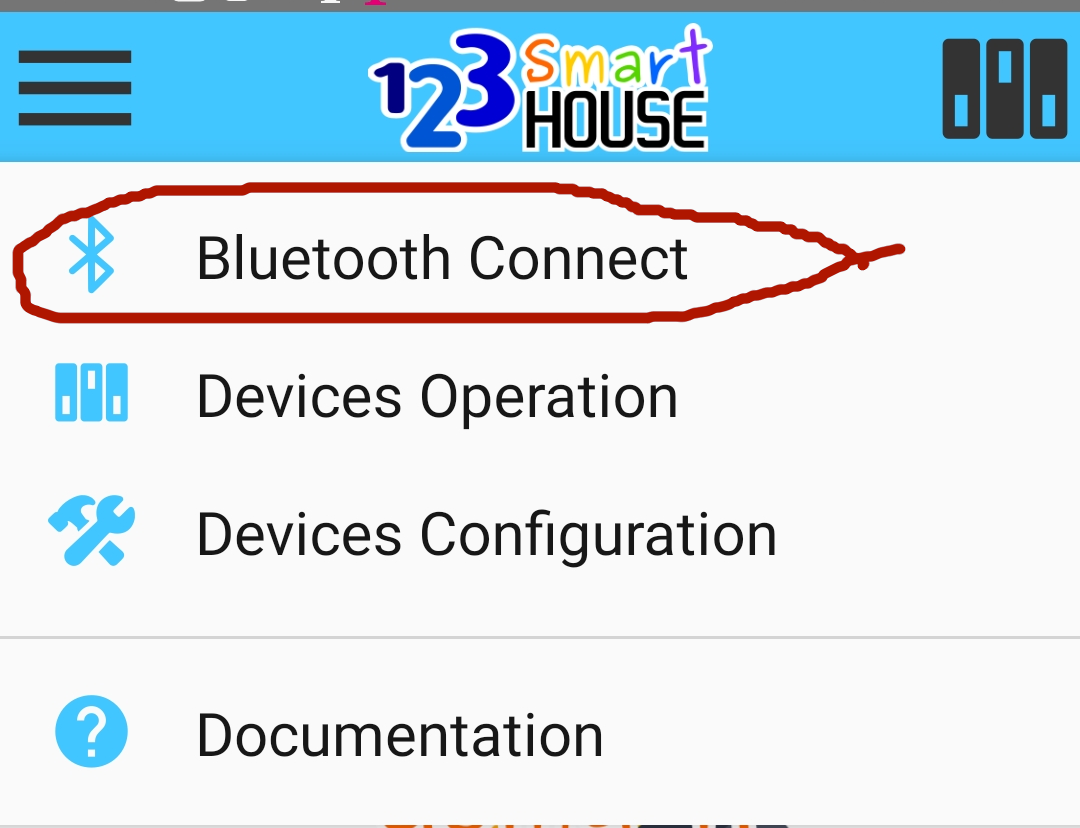
Then select the Bluetooth connect option:
After waiting aprox 5 secs, the available devices list will show:
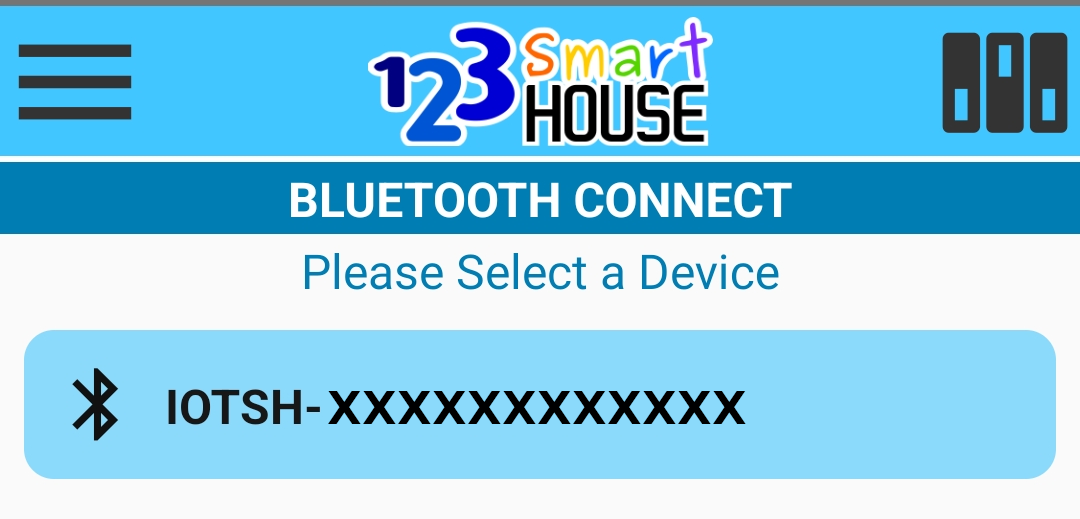
Press on the desired device. If the device is not configured, then a dialog popup is going to appear. Depending on the device type / model, the information requested in that dialog popup may vary. Enter all the information required (name, time zone, etc...) and press "Save". A confirmation page should appear:
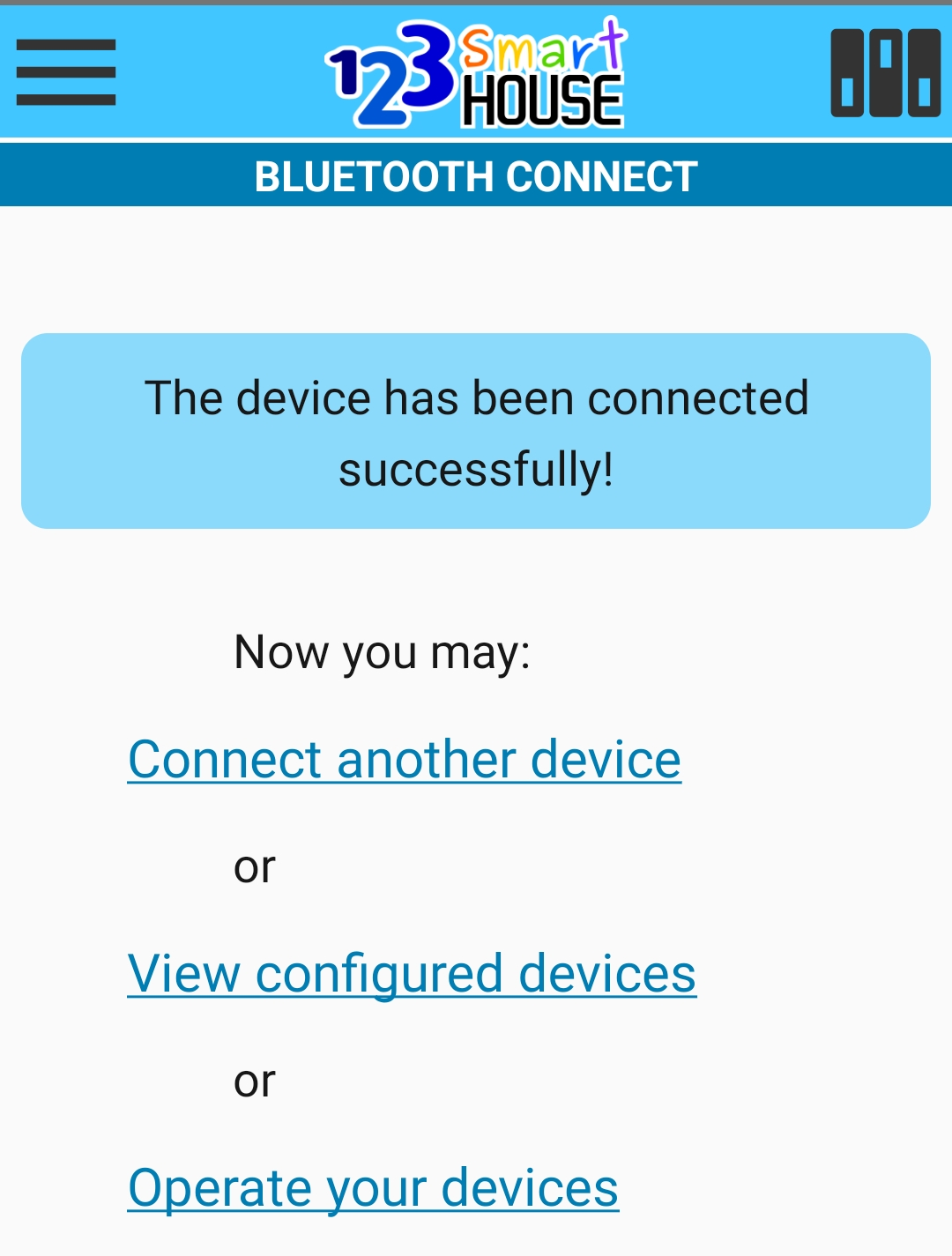
Now you are connected to the new device via Bluetooth.
WiFi Configuration
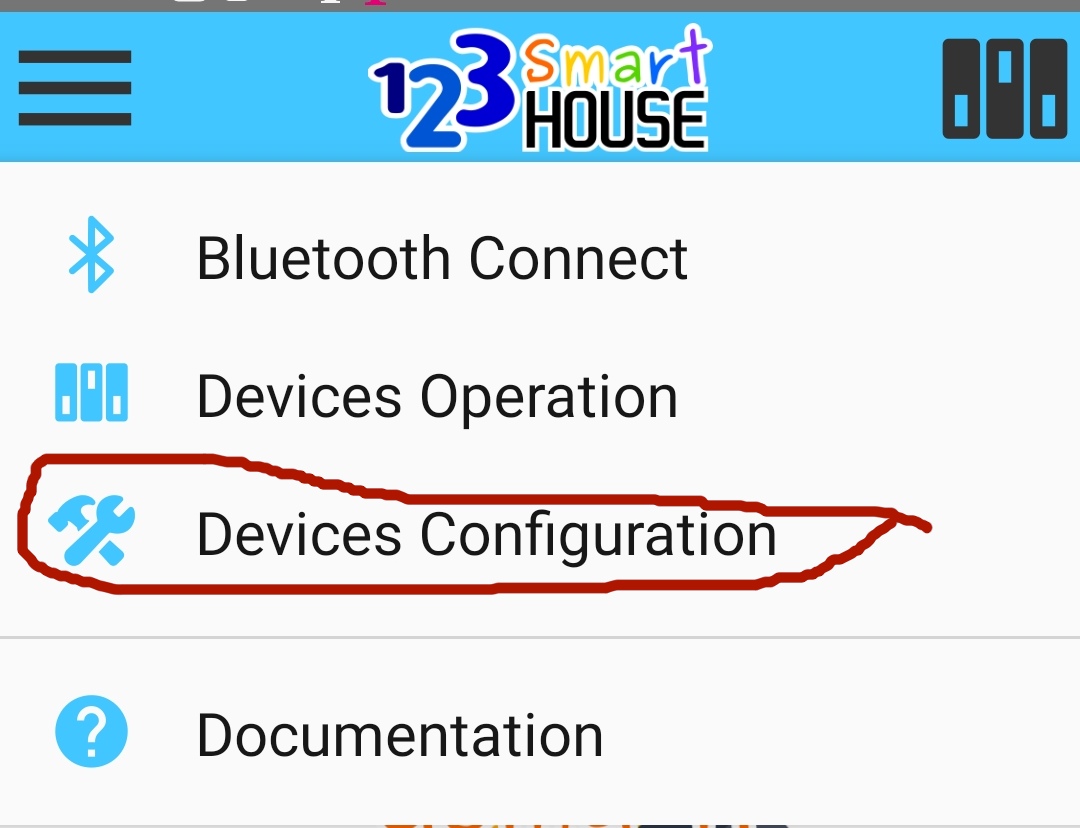
You can also connect the device to a WiFi network. This will allow you to control your device without connecting via bluetooth and also from any location in the world. To achieve that, press the Main Menu button and select "Devices Configuration":
Press on the device you want to configurate to expand and show all the options, then press the edit icon on the WiFi section:
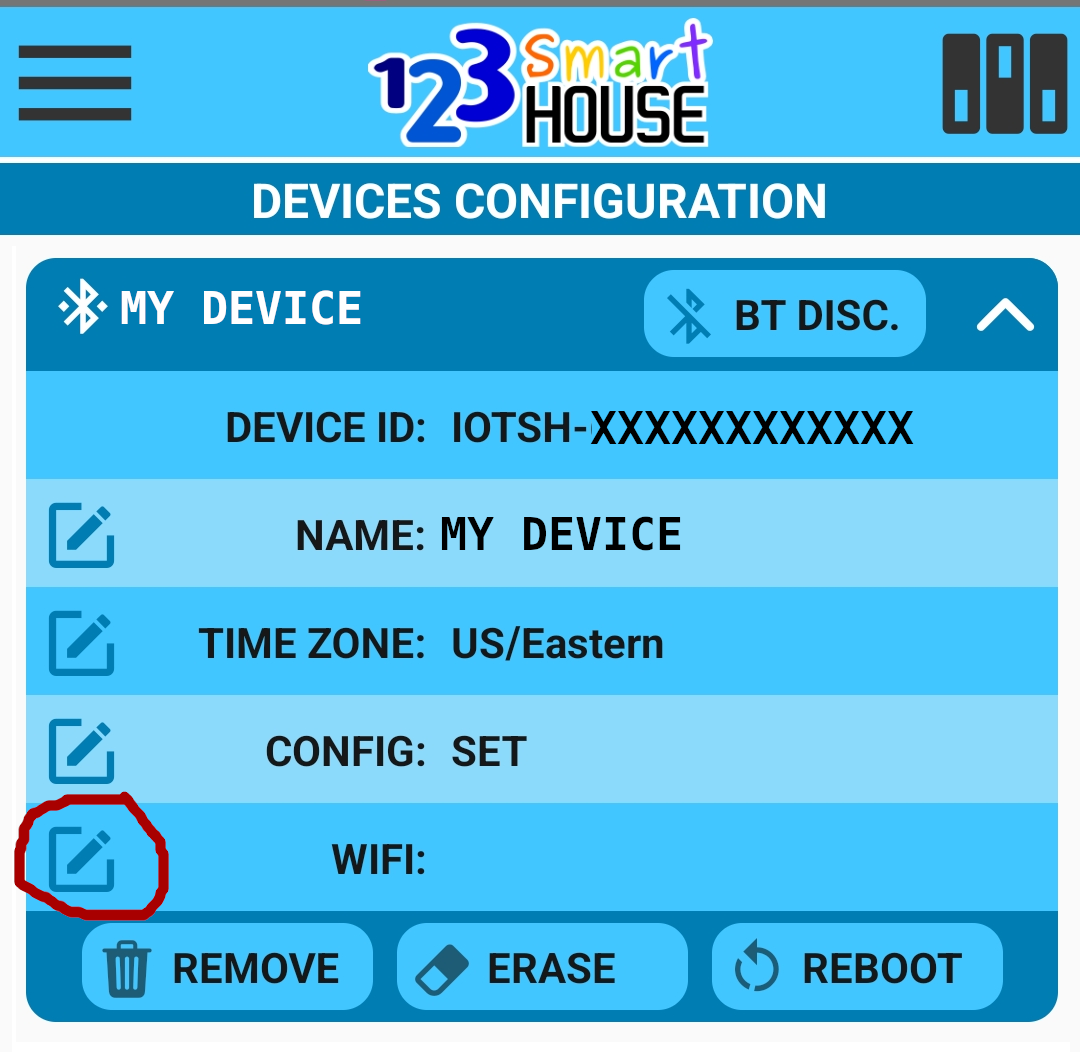
A list with all the available WiFi networks will show:
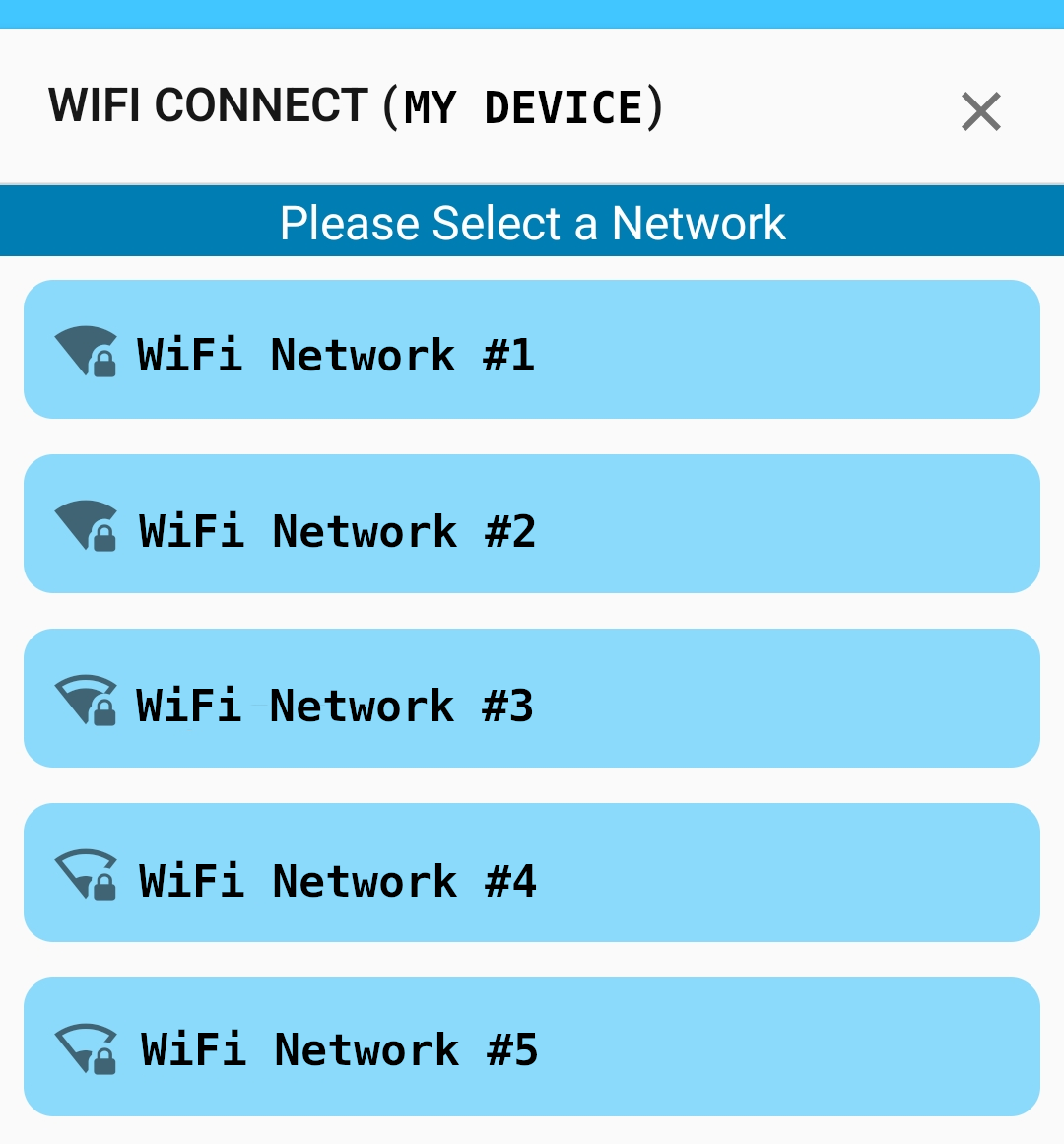
Then enter the WiFi password (only for secure networks) and press "Save". A confirmation page will show. Now you can access your device from anywhere in the world!
OPERATION
To operate your devices, go to Main Menu and select "Devices Operation":
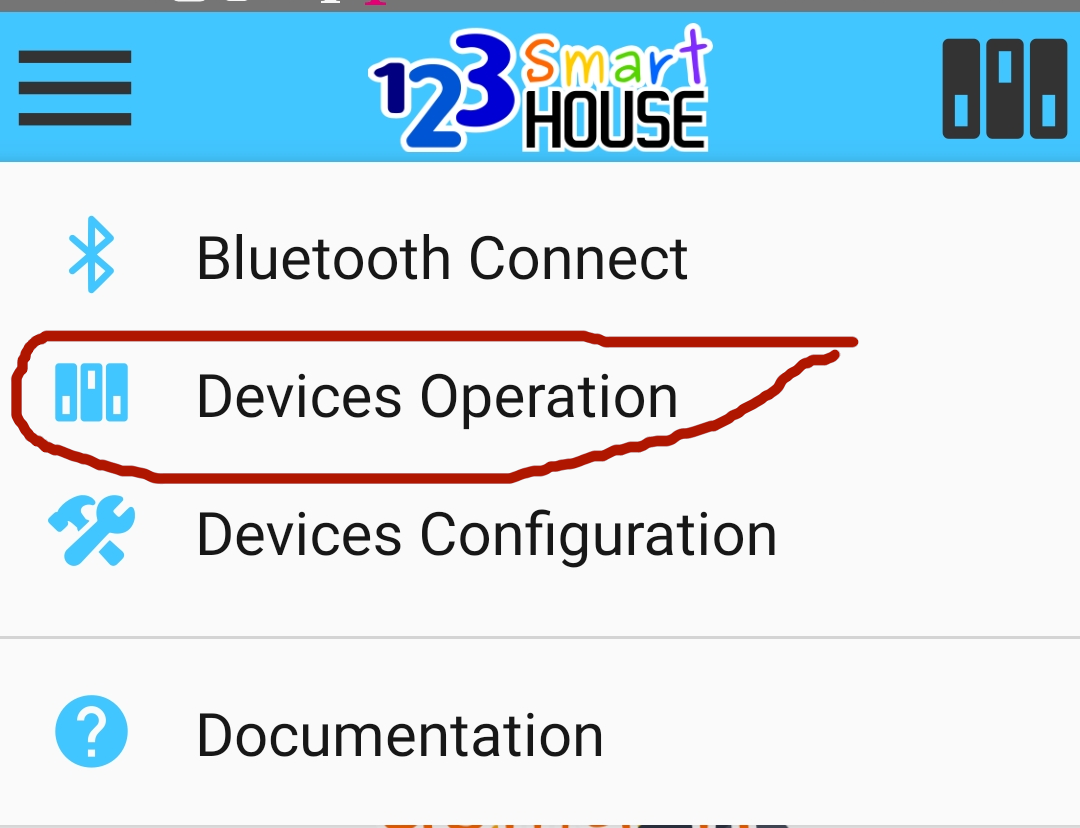
A list of available devices will appear. The available options for each device will vary depending on each device type / model.
Following is an explanation for all the possible options:
ON / OFF Button:
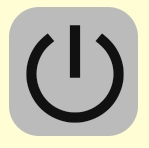
Tap on the power button to toggle between possible states: [ ON / OFF ] for most device items, or [HIGH / LOW / OFF ] for two speeds pumps. When the power is OFF, the button will show in gray color, otherwise will show in green color.
Pool Light Button:

Tap on a pool light item to change the color for that specific pool light. A popup dialog will show with the list of available colors / sequences for this specific pool light brand / type (123SmartHouse allows different pool lights brands in the same device):
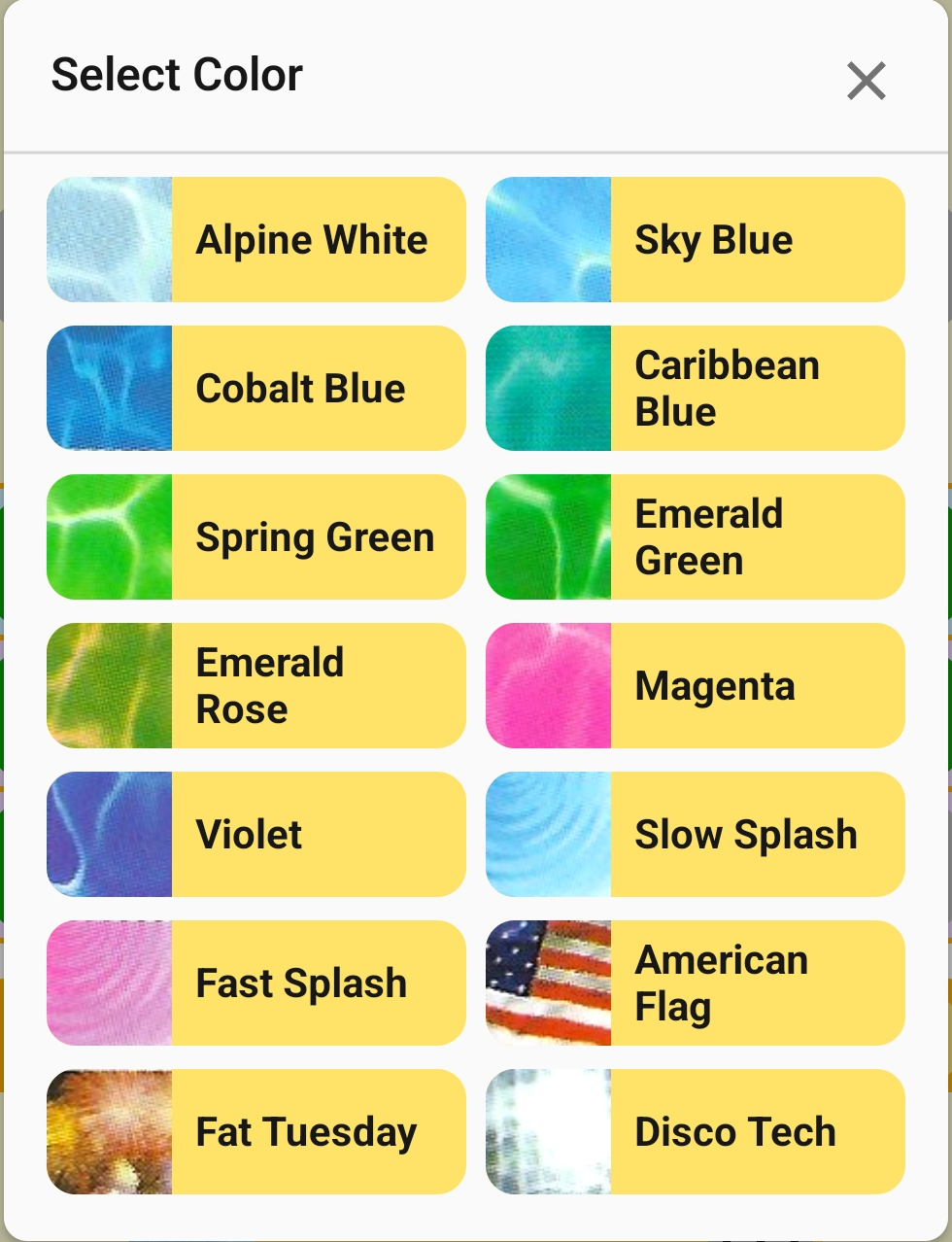
Press on the desired color and wait until finishing (it may take a while depending on the color and brand).
Timers Button:
Timers are used to program automatic changes of state on your devices items. For example to turn ON my pool light every day or specific days at 9:00 PM etc. Tap on any timers button to have access to timers configuration:
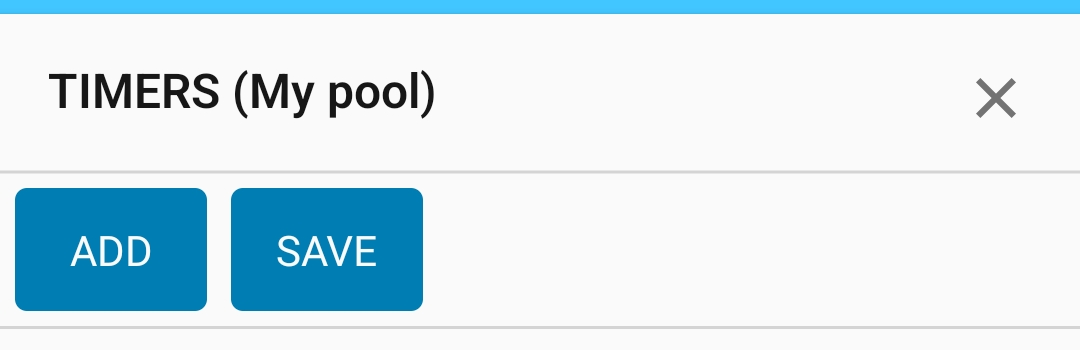
To add a timer to this item, tap on "Add" button, a popup dialog will show:
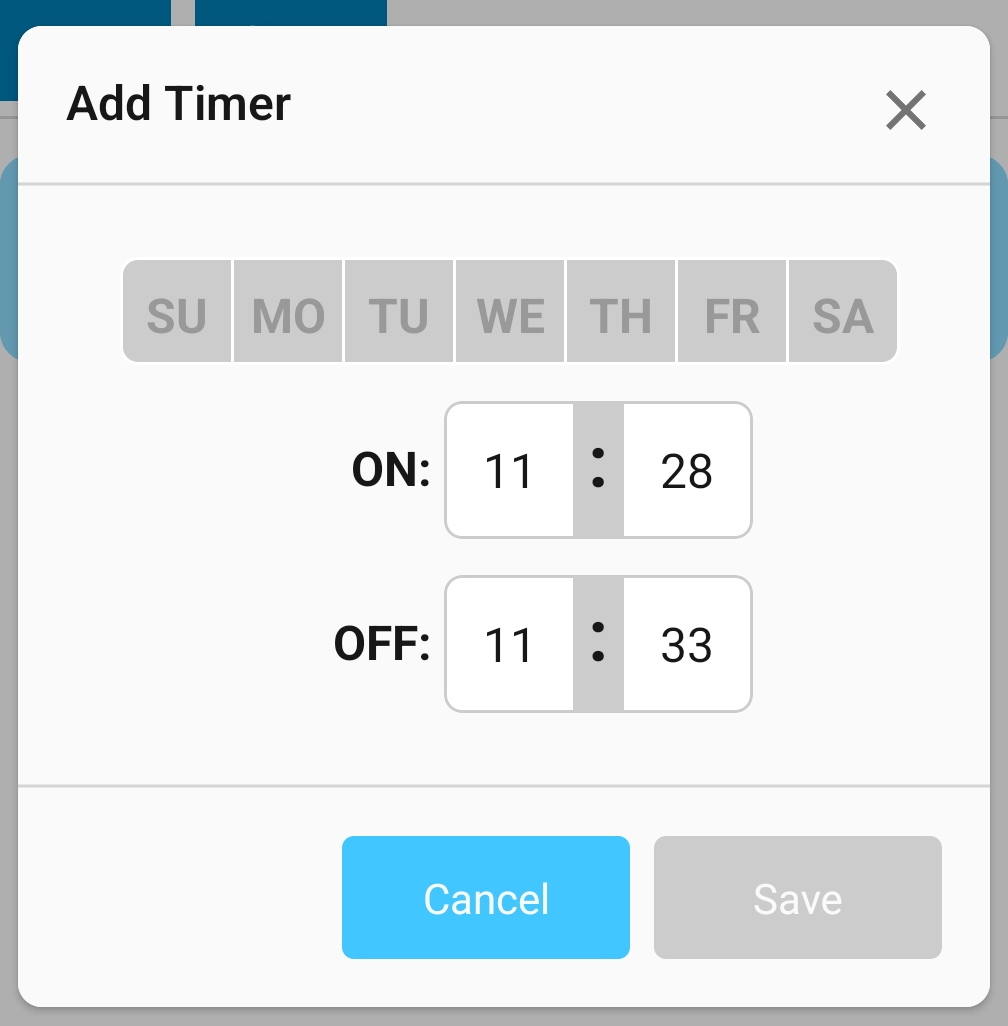
You need to select at least one day of the week, then select at what time the device item will turn ON and OFF. Then press "Save".
Repeat this process as many times as needed (you may add up to 10 timers for each device)
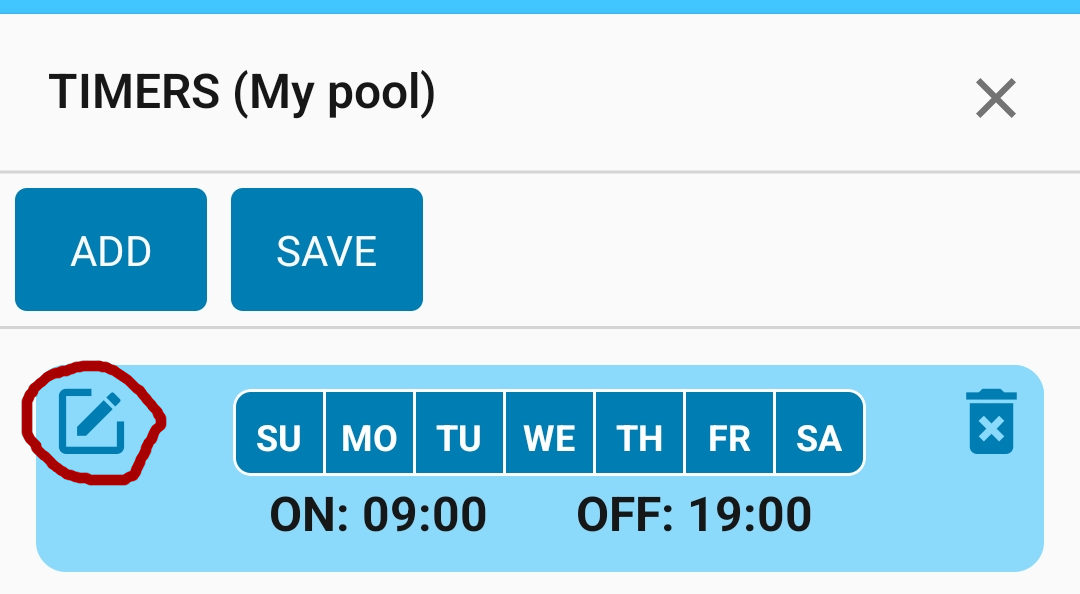
For editing a specific timer, tap on the edit icon:
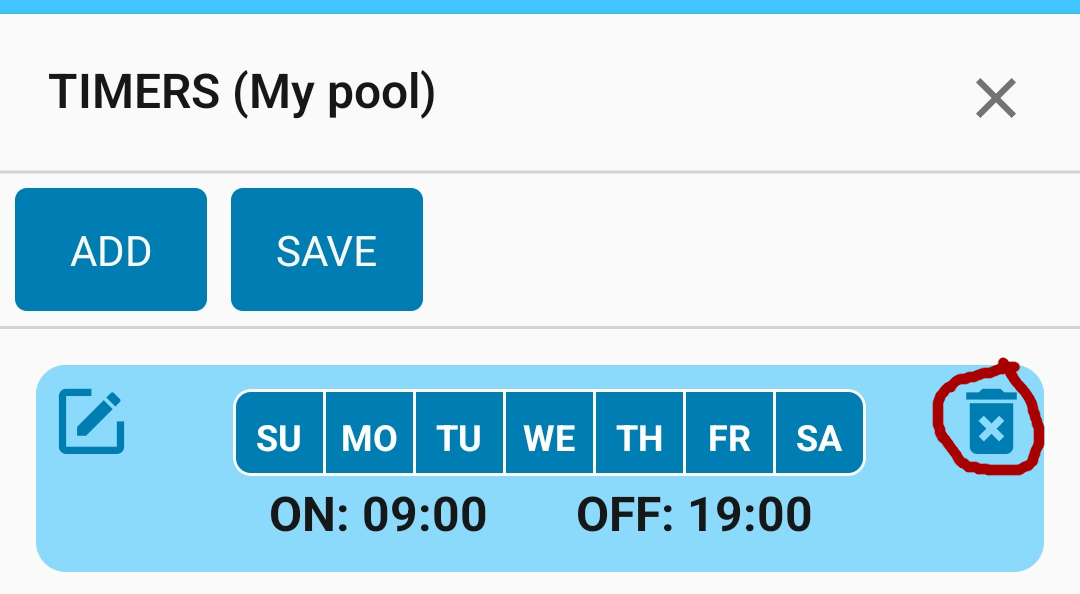
For deleting a specific timer, tap on the delete icon:
After you made all desired changes, press "Save" to write all the changes to the device.
Note
For two speeds pumps, the timers configuration process will be slightly different.
Bluetooth Disconnect Button:
If a device is connected via Bluetooth, this button will show up. Tap on it to disconnect this device from Bluetooth.
CONFIGURATION
To configure your devices, go to Main Menu and select "Devices Configuration":
Press on the device you want to configurate to expand and show all the options.
WiFi Configuration:
To setup or change the WiFi configuration, please refer to: Setup / Wifi Configuration
Device Configuration:
To change the device configuration / parameters, tap on any of this icons:
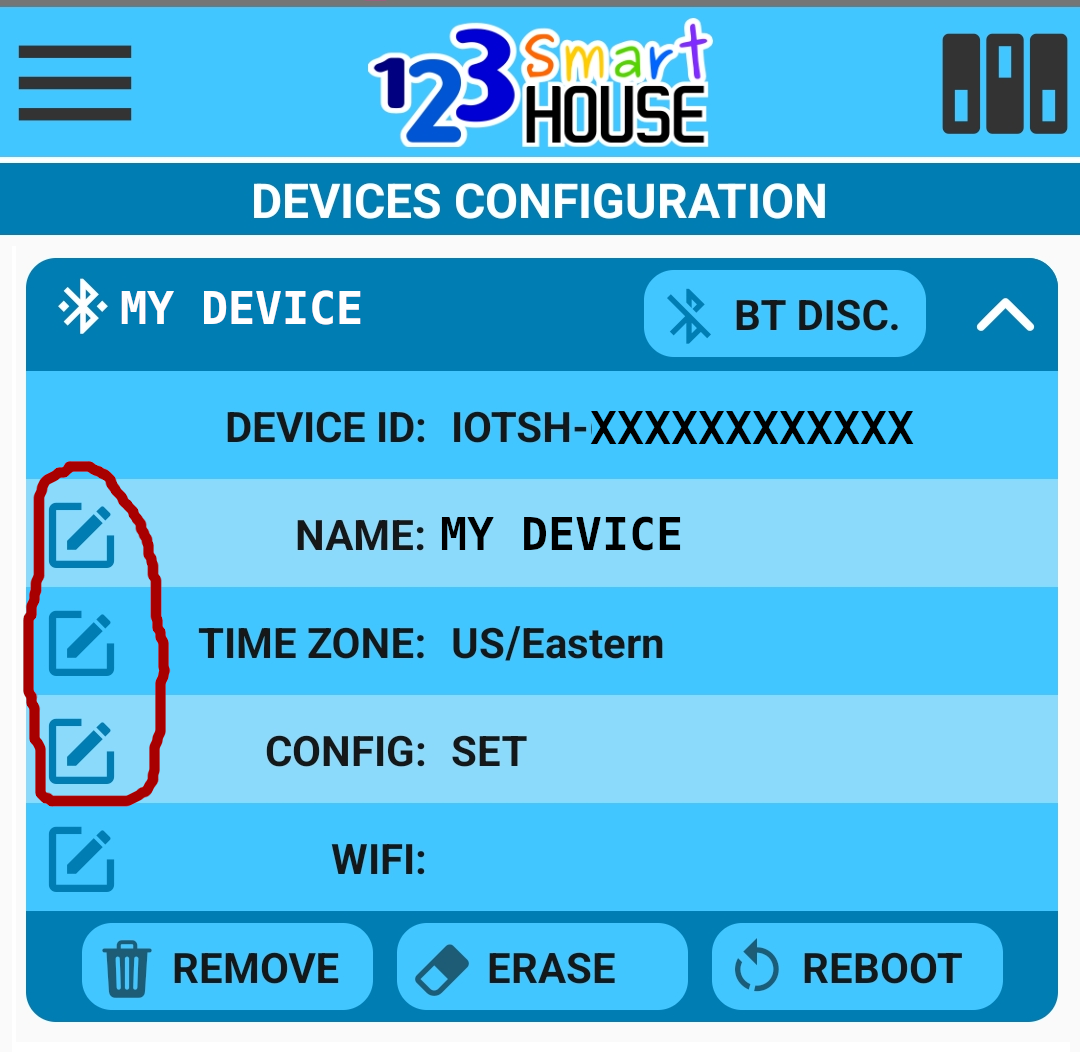
A popup dialog will show with all the possible options depending on the device type / model. Following is an explanation for all the possible options:
Device Name - This is a friendly name for your device, this option is mandatory.
Time Zone - This is the time zone in wich this device is located, this option is mandatory.
Device Type - The type of device, this option is mandatory.
Pool Light Name - This is a friendly name for each pool light, this option is optional.
Pool Light Type - The type / brand of each pool light. Also set if that specific light is in use or not, this option is mandatory.
Pool Pump Type - The type (one or two speeds) of the pool pump. Also set if it is in use or not, this option is mandatory.
Auxiliar Outlet Name - This is a friendly name for each auxiliar electric outlet, this option is optional.
Auxiliar Outlet in Use - This option specifies if a specific outlet is in use or not, this option is mandatory.
Bluetooth Disconnect Button:
If a device is connected via Bluetooth, this button will show up. Tap on it to disconnect this device from Bluetooth.
Remove Button:
If you no longer want to operate / configure this device, select this option to remove this device from your phone / tablet.
Erase Button:
To do a factory reset of this device tap on this button. It will only show when you are connected via Bluetooth to this device.
All configurations, timers, etc will be lost for this device!
Reboot Button:
Tap on this button if you want to reboot (power cycle) this device. It will only show when you are connected via Bluetooth or in the same WiFi network as the device.
PRIVACY POLICY
123SmartHouse is built and distributed as a free app. This SERVICE is provided by 123SmartHouse at no cost and is intended for use as is.
This document is used to inform app users regarding our policies with the collection, use, and disclosure of Personal Information if anyone decided to use our Service.
Information Collection and Use
This App does not collect any personal information (like name, address, etc) in order to function correctly. The only information we store in the mobile device and on the cloud is related to the IOT devices managed by this app. The collected information may include information such as your IOT devices's IP address, name and time zone.
The app does use third party services (AWS) to store and provide connectivity to those managed IOT devices, but all the control and management of that information is provided by 123SmartHouse.
Cookies
Cookies are files with small amount of data that is commonly used an anonymous unique identifier. These are sent to your browser from the website that you visit and are stored on your devices's internal memory.
Security
We value your trust in providing us with the information we collect, thus we are striving to use commercially acceptable means of protecting it. But remember that no method of transmission over the internet, or method of electronic storage is 100% secure and reliable, and we cannot guarantee its absolute security.
Children's Privacy
This Services do not address anyone under the age of 13 and we do not collect any personal information (like name, address, etc).
Changes to This Privacy Policy
We may update our Privacy Policy from time to time. Thus, you are advised to review this page periodically for any changes. We will notify you of any changes by posting the new Privacy Policy on this page. These changes are effective immediately, after they are posted on this page.